Item Details
The item detail view shows everything the AI knows about a clothing item, your wear history for it, and controls to edit or manage it.
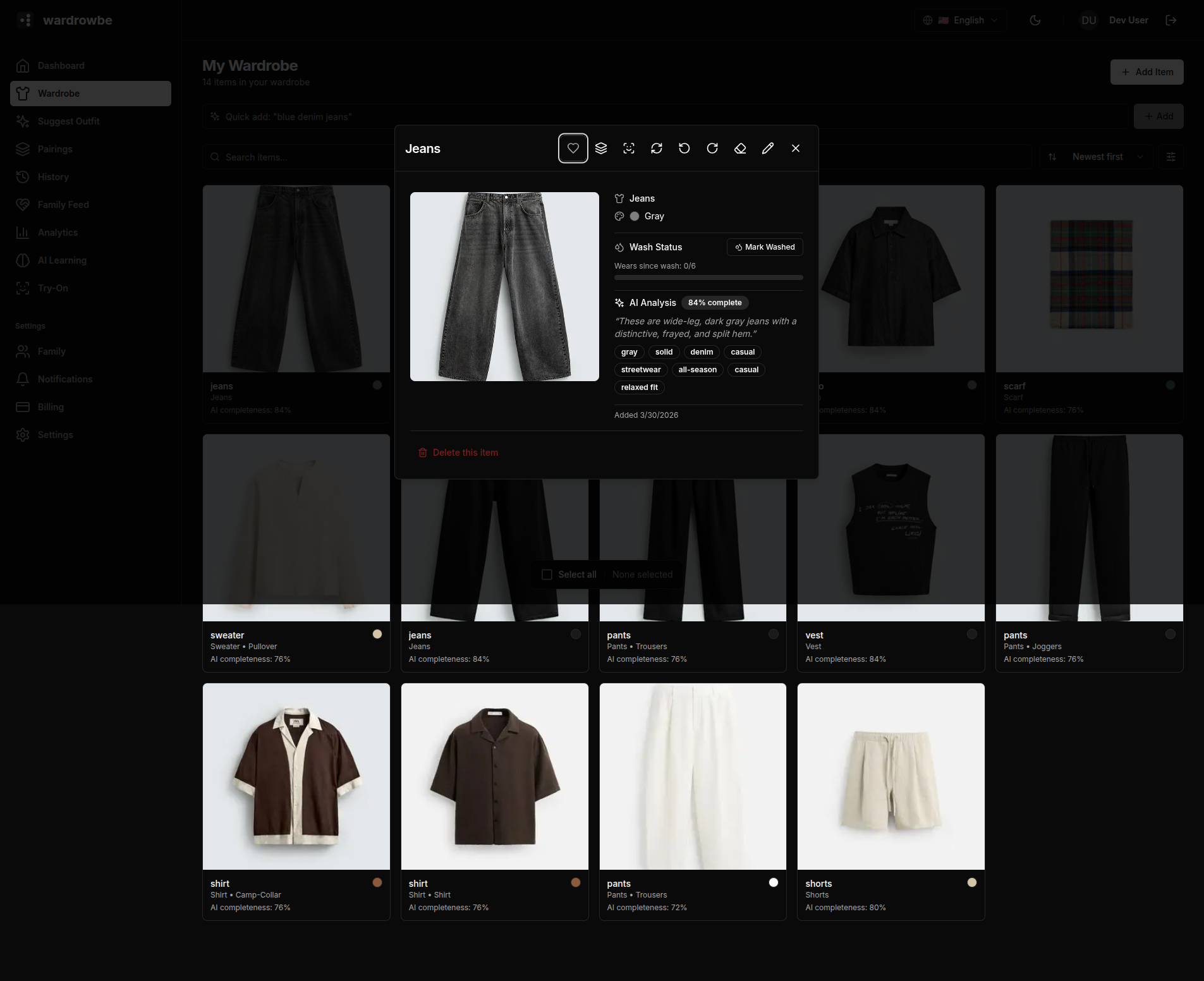
Item Image
The item photo is shown with its background removed. Background removal runs automatically during processing. If the result looks off, you can run the analysis again with “Re-analyze with AI”.
AI Tags
The AI generates a full tag set when an item is processed. Tags are organized into categories:
| Tag | Description |
|---|---|
| Type | Top-level clothing category (shirt, trousers, dress, shoes, etc.) |
| Subtype | More specific classification (e.g., t-shirt, chinos, midi dress) |
| Color | Primary color of the item |
| Secondary colors | Additional colors present |
| Style | Casual, formal, sporty, minimalist, or bold |
| Formality | Scale from casual to black tie |
| Season | Appropriate season(s) for the item |
| Material | Detected fabric type (wool, cotton, denim, etc.) |
| Pattern | Solid, striped, checked, floral, etc. |
Confidence Percentage
Each tag shows a confidence percentage. Higher confidence means the AI was more certain about that tag. Tags with low confidence (below roughly 70%) are worth reviewing manually.
Editing Tags
Any tag can be edited. Click on a tag value to open an inline editor with a text field or dropdown, depending on the tag type. Changes save immediately and take effect in future outfit suggestions.
If the AI made a significant error (wrong type, wrong color), it’s worth correcting it. The suggestion engine relies heavily on these tags when matching items to occasions and weather.
Favorites
The heart icon in the top-right corner of the item view toggles the item as a favorite. Favorited items appear first in wardrobe searches and get a slight priority boost in outfit suggestions.
Wear Statistics
Below the tags panel, the item detail view shows:
- Total wear count: How many times you’ve logged wearing this item.
- Last worn: The date of the most recent wear, with color coding (green = recent, amber = a few weeks, red = hasn’t been worn in a long time).
- Wear history: A timeline of all logged wear dates.
Notes
When you edit an item, the “Notes” field holds anything you want to remember about it. Outfit suggestions follow the first 150 characters of these notes, for example “only with the white shirt”. A note shapes which pieces are put together, but suggestions never quote or repeat it: any suggestion text that repeats part of a note is removed before you see it, so people in your family who see your outfits never see your notes.
Item Actions
The buttons at the top of the item view:
- Toggle favorite: mark the item as a favorite.
- Find matching outfits: find pairings that go with this item.
- Share outfits with this item: make a shared look from this item’s outfits.
- Re-analyze with AI: run the AI analysis again, for example after replacing a poor photo. On the free pass, only items whose tagging failed can be re-analyzed.
- Edit item: edit the name, type, subtype, color, brand, notes and wash interval.
At the bottom of the item view:
- Archive: move the item to your archive, with an optional reason. An archived item shows “Restore” here instead.
- Delete this item: permanently remove the item and its history. If the item is part of an outfit in your lookbook, you’re offered “Archive instead”.
Mobile: Tap any item card in the wardrobe tab to open the item detail sheet. Edit and action buttons appear at the bottom of the sheet.