Outfit Studio Overview
Outfit Studio is the manual path for building outfits. The AI suggestion flow is still the fastest way to get dressed, but Studio gives you full control when you want to compose a specific look, save a combination you came up with yourself, or edit something the AI produced.
Studio lives inside the unified Outfits tab alongside suggestions, your saved looks, and the calendar view.
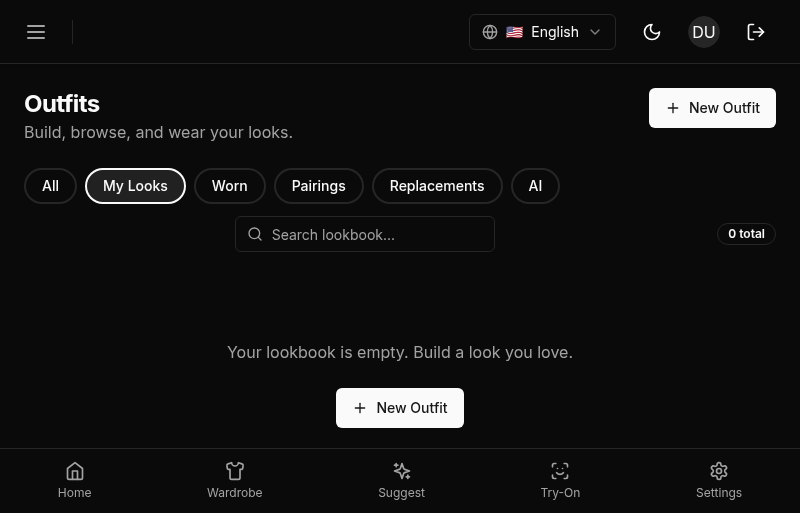
The Unified Outfits Tab
Everything outfit-related is on one page now. Suggestions, your own saved outfits, and a calendar of what you’ve worn all share a single surface with filter chips at the top.
- All: every outfit that’s visible to you, mixed together.
- Lookbook: only your saved lookbook templates. See “What is a lookbook?” below.
- Worn: outfits you’ve actually worn, with a wear date.
- Pairings: outfits generated around a specific item.
- Replacements: outfits generated to replace an earlier suggestion.
- AI: outfits generated by the scheduled or on-demand suggestion flow.
Calendar is a separate view-mode toggle next to the filter chips, not a chip itself. It switches the page from a grid of cards to a month calendar of what you actually wore.
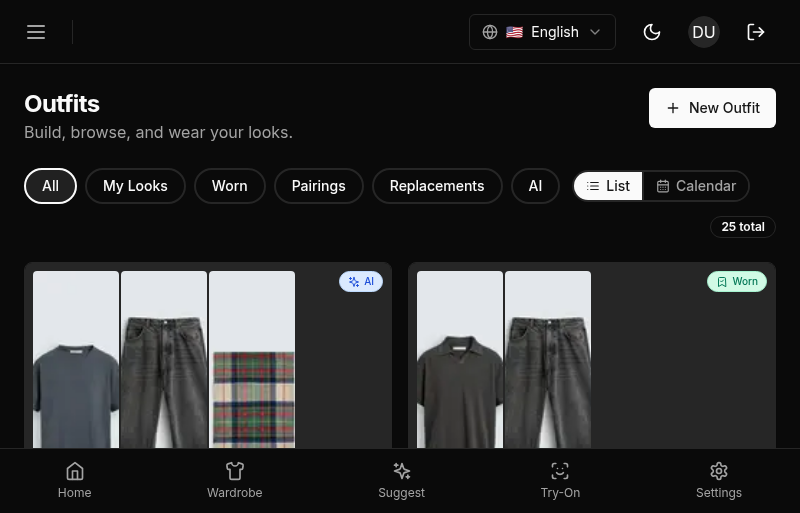
The active chip and view mode are reflected in the URL, so links to /outfits?filter=my-looks or /outfits?view=calendar go straight to the right view. Refreshing keeps you where you were.
What Is a Lookbook?
A lookbook entry is just an outfit saved without a wear date: a reusable template you can pull up any time and wear via “Wear Today,” rather than a one-off suggestion tied to a specific day. There’s no separate “lookbook” object in the data model. It’s the same Outfit record as everything else, distinguished only by having no scheduled date.
Entering Studio
There are three ways into Studio:
- Build new: the button in the Outfits tab header. Opens an empty canvas.
- Clone to lookbook: from any outfit detail. Pre-fills the canvas with the items from that outfit so you can tweak and save it as your own reusable lookbook entry.
- Edit: from your own saved looks. Opens Studio on the existing outfit.
Studio is not available for suggested outfits you haven’t interacted with yet. If you want to modify a suggestion, use “Clone to lookbook” to turn it into your own outfit first.
Kill Switch
Studio can be disabled from the backend with the studio_disabled setting. When it’s off, the Build new button, Clone to lookbook action, and Edit action are all hidden, and the API returns a clear error. This is the escape hatch for incidents or rollbacks. In normal operation it stays on.
What Studio Is Not
- Not a replacement for suggestions. If you just want something to wear this morning, suggestions are faster and they use the full Style Learning pipeline.
- Not a shopping list. Studio only works with items already in your wardrobe. If you want to plan an outfit around something you don’t own yet, add the item first.
- Not editable after you’ve worn it. Once an outfit has at least one wear record, Studio blocks edits. See Edit and Lineage for why and what to do instead.
Mobile: The unified Outfits tab replaces the previous separate Suggest and History tabs in the bottom navigation. Filter chips live in a horizontal segmented control at the top. Tap “Build” to open Studio on mobile; the canvas is the same component, adapted for touch.