Dashboard
The dashboard is your daily home base. It shows what the weather is doing, whether an outfit is waiting for your answer, whether you wore the outfit you chose, and how your wardrobe is doing over time.
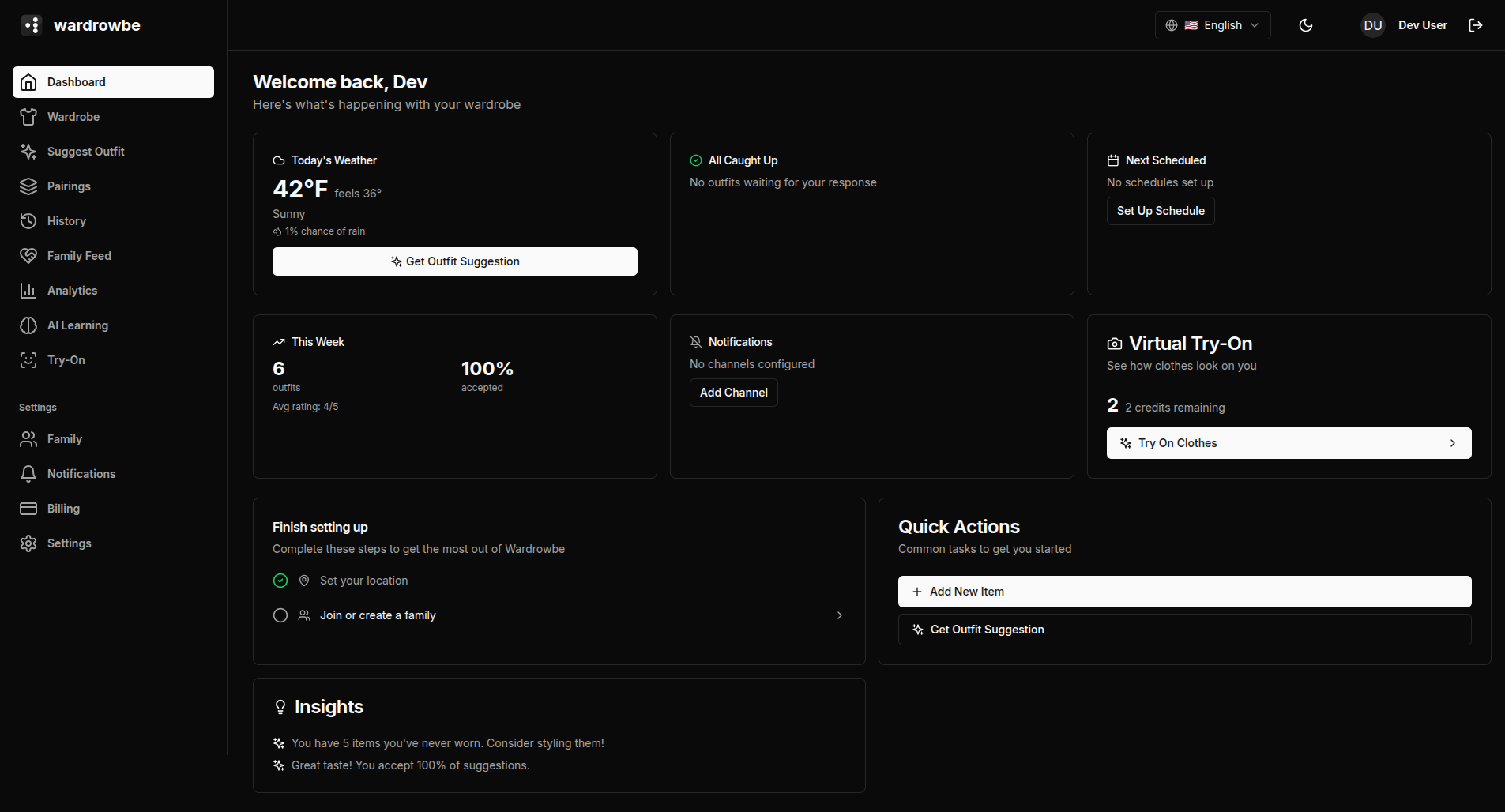
Weather Card
The weather card shows current conditions for your location: temperature (in your preferred unit), feels-like temperature, precipitation chance, wind speed, and a condition label. This card feeds directly into outfit suggestions. When the app generates an outfit, it uses this exact weather data.
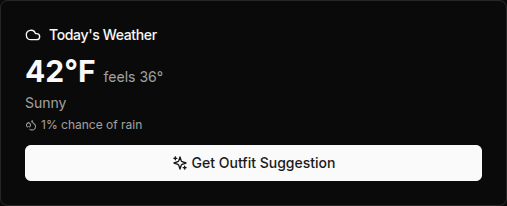
If your location hasn’t been set, the card will prompt you to add it in Settings.
Did You Wear It?
When you have chosen an outfit with “Wear this”, the dashboard asks about it later with a “Did you wear it?” card: for today’s outfit from 5pm, and for the two days before until you answer. Answer “Yes, I wore it”, “Something else” or “Not this one”, and the wear is logged for you. The card is part of the free pass, the trial and paid plans; see Wear Checks for what each answer does.
Pending Outfits
The “Pending Outfits” card lists today’s suggestions you haven’t answered yet, with “Not for me” and “Wear this” on each, so you can decide without opening the Suggest page. An outfit you choose with “Wear this” is saved for today and leaves the list; that evening the “Did you wear it?” card asks about it. When nothing is waiting, the card says “All Caught Up”.
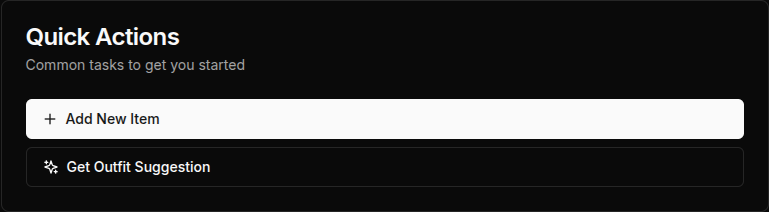
Quick Actions
The “Quick Actions” card gives you one-click access to common tasks: “Get Outfit Suggestion”, “Add New Item” and “Log What I Wore”. “Log What I Wore” lets you log clothes you wore without a suggestion; it is part of the trial and paid plans and is hidden on the free pass.
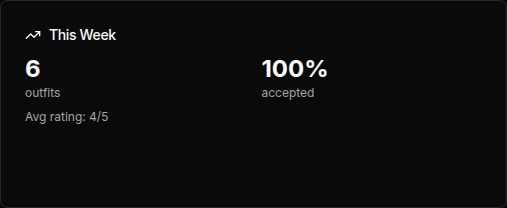
Weekly Summary
The weekly summary shows how many outfits you’ve accepted this week and how many items you’ve worn. It gives a quick read on whether you’ve been actively using your wardrobe.
Setup Checklist
For new accounts, the dashboard shows a setup checklist covering the key steps to get full value out of the app: set your location, add at least 5 items, configure your style preferences, and set up notifications. The checklist disappears once all steps are complete.
Insights Card
The insights card surfaces a recent finding from the Style Learning system. Examples: “You tend to prefer layered outfits on cold days” or “Navy blue appears in 8 of your last 10 accepted outfits.” These rotate as the system learns more.
Virtual Try-On Credits
If you’re on a plan that includes virtual try-on, the dashboard shows your current credit balance: monthly allowance used, remaining credits, and any bonus credits from purchased packs. Clicking this card takes you to the Credits page.
Notification Status
The notification status indicator shows whether you have any active notification schedules. If notifications are not configured, there’s a link to the Notifications setup page.
Mobile: The mobile home screen has the same structure, including the “Did you wear it?” card and pending outfits. Tap the weather card to see the full forecast, or use the quick actions to add an item, request an outfit, log what you wore or open Scan.