Item Details
The item detail view shows everything the AI knows about a clothing item, your wear history for it, and controls to edit or manage it.
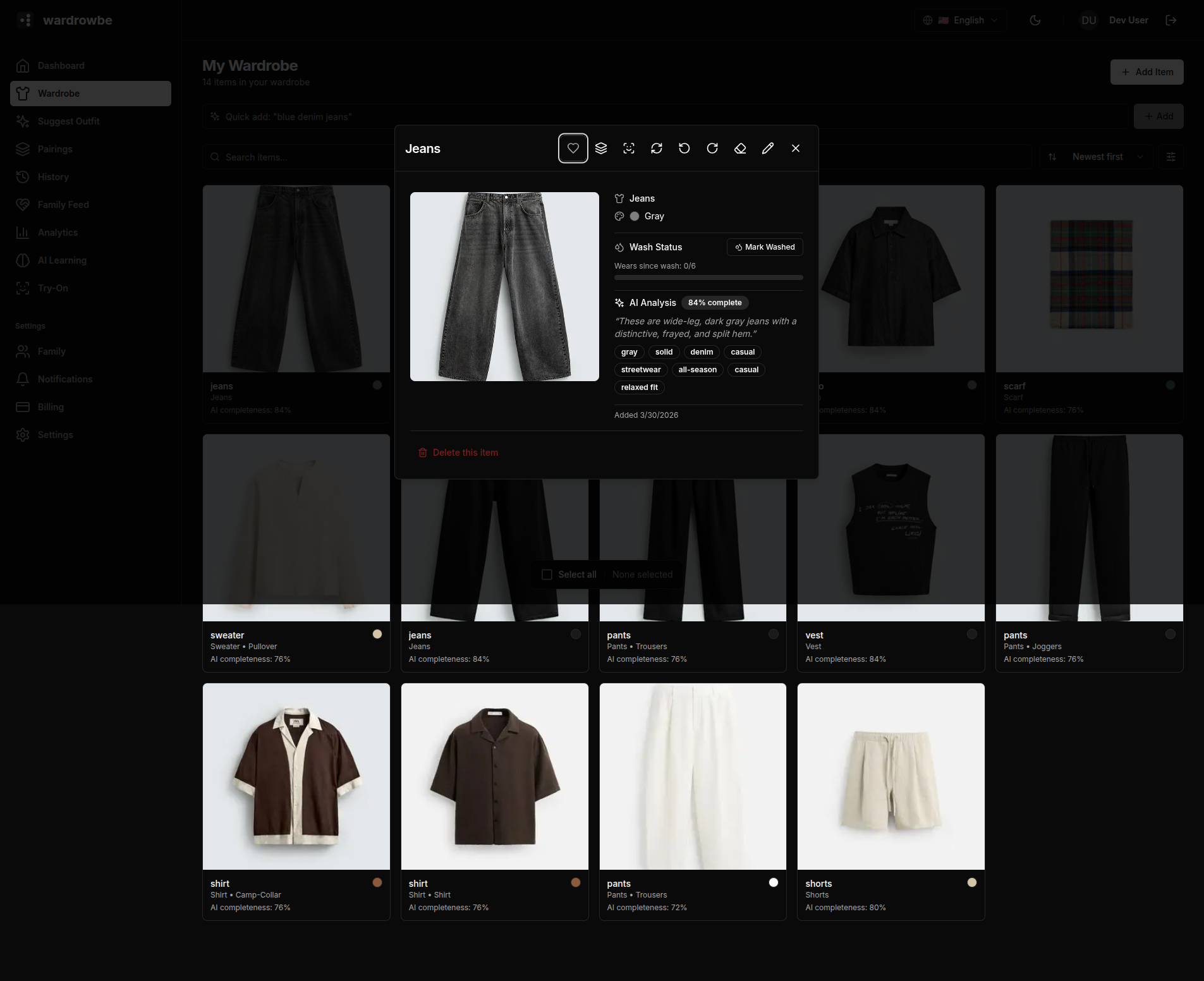
Item Image
The item photo is shown with its background removed. Background removal runs automatically during processing. If the result looks off, you can re-run AI analysis from the overflow menu.
AI Tags
The AI generates a full tag set when an item is processed. Tags are organized into categories:
| Tag | Description |
|---|---|
| Type | Top-level clothing category (shirt, trousers, dress, shoes, etc.) |
| Subtype | More specific classification (e.g., t-shirt, chinos, midi dress) |
| Color | Primary color of the item |
| Secondary colors | Additional colors present |
| Style | Casual, formal, sporty, minimalist, or bold |
| Formality | Scale from casual to black tie |
| Season | Appropriate season(s) for the item |
| Material | Detected fabric type (wool, cotton, denim, etc.) |
| Pattern | Solid, striped, checked, floral, etc. |
Confidence Percentage
Each tag shows a confidence percentage. Higher confidence means the AI was more certain about that tag. Tags with low confidence (below roughly 70%) are worth reviewing manually.
Editing Tags
Any tag can be edited. Click on a tag value to open an inline editor with a text field or dropdown, depending on the tag type. Changes save immediately and take effect in future outfit suggestions.
If the AI made a significant error (wrong type, wrong color), it’s worth correcting it. The suggestion engine relies heavily on these tags when matching items to occasions and weather.
Favorites
The heart icon in the top-right corner of the item view toggles the item as a favorite. Favorited items appear first in wardrobe searches and get a slight priority boost in outfit suggestions.
Wear Statistics
Below the tags panel, the item detail view shows:
- Total wear count: How many times you’ve logged wearing this item.
- Last worn: The date of the most recent wear, with color coding (green = recent, amber = a few weeks, red = hasn’t been worn in a long time).
- Wear history: A timeline of all logged wear dates.
Item Actions
From the overflow menu (three dots in the corner):
- Edit name: Change the display name.
- Reanalyze: Re-run the full AI analysis. Use this if the original analysis was done on a poor-quality photo and you’ve since replaced the photo.
- Delete: Permanently remove the item and all its history.
Mobile: Tap any item card in the wardrobe tab to open the item detail sheet. Edit and action buttons appear at the bottom of the sheet.