Bulk Upload
Bulk upload lets you add multiple items at once without going through the single-item dialog for each one. It’s useful when you’re cataloging a whole wardrobe for the first time.
Selecting Multiple Photos
Open the Add Item dialog and switch to the “Bulk” tab. The upload area accepts multiple files at once. Select or drag-drop as many photos as you want. There’s no hard limit, but very large batches (100+ items) may take a while to process.
Each photo appears as a thumbnail in a queue. You can remove individual photos from the queue before submitting by clicking the X on the thumbnail.
Processing Queue
After submitting, each item enters the queue independently. Processing runs in parallel where possible. Items appear in your wardrobe grid immediately with a “Processing” badge, and badges clear as each item finishes.
You can navigate away from the wardrobe page during processing. The queue continues running in the background.
Duplicate Detection
The system checks each new upload against existing items to detect likely duplicates. If a probable duplicate is found, you’ll see a warning before the item is added. You can dismiss the warning and add it anyway (useful for multiple similar items like several white shirts), or cancel and skip that photo.
Duplicate detection uses visual similarity, not exact matching. Two photos of the same shirt from different angles may not trigger a warning.
Bulk Selection Mode
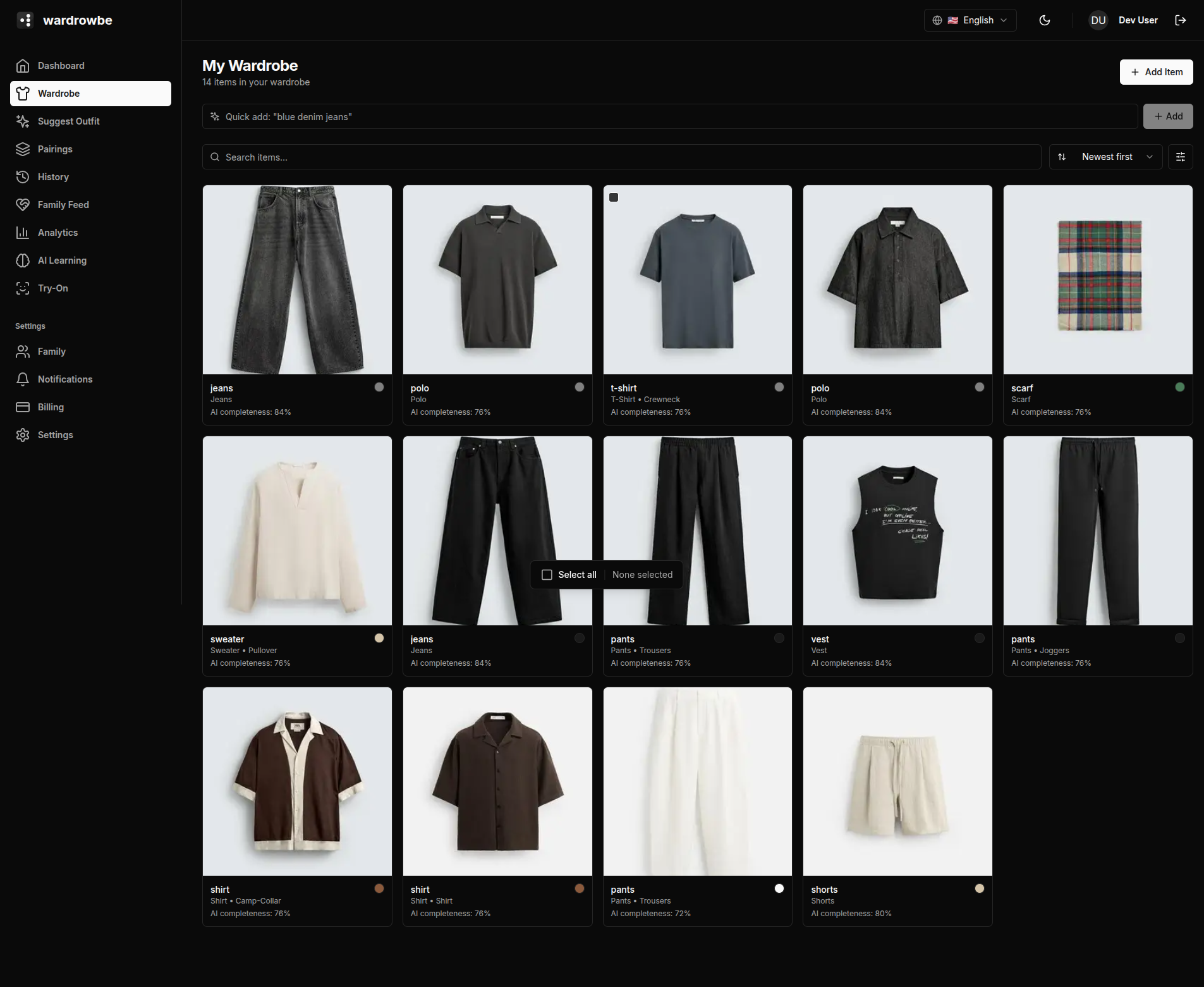
After items are in your wardrobe, you can select multiple items for batch actions. Click the checkbox icon in the toolbar to enter bulk selection mode. In this mode:
- Click any item card to select it (a checkmark appears on the card).
- A toolbar appears at the bottom showing how many items are selected and what actions are available.
Bulk Actions
With items selected, available actions are:
| Action | Description |
|---|---|
| Delete | Permanently remove selected items from your wardrobe |
| Reanalyze | Re-run AI analysis on selected items (useful if original analysis was poor) |
| Mark as worn | Log a wear for all selected items |
| Mark as washed | Clear the needs-wash flag on selected items |
Bulk delete asks for confirmation before proceeding. All other actions apply immediately.
Mobile: Bulk upload on mobile works through the photo library picker. Tap “Add Item” and select multiple photos at once. The rest of the flow is identical.