Adding Items
There are three ways to add clothing items to your wardrobe. All three go through the same AI analysis pipeline: the item gets analyzed, tags are generated, and the background is removed from the photo.
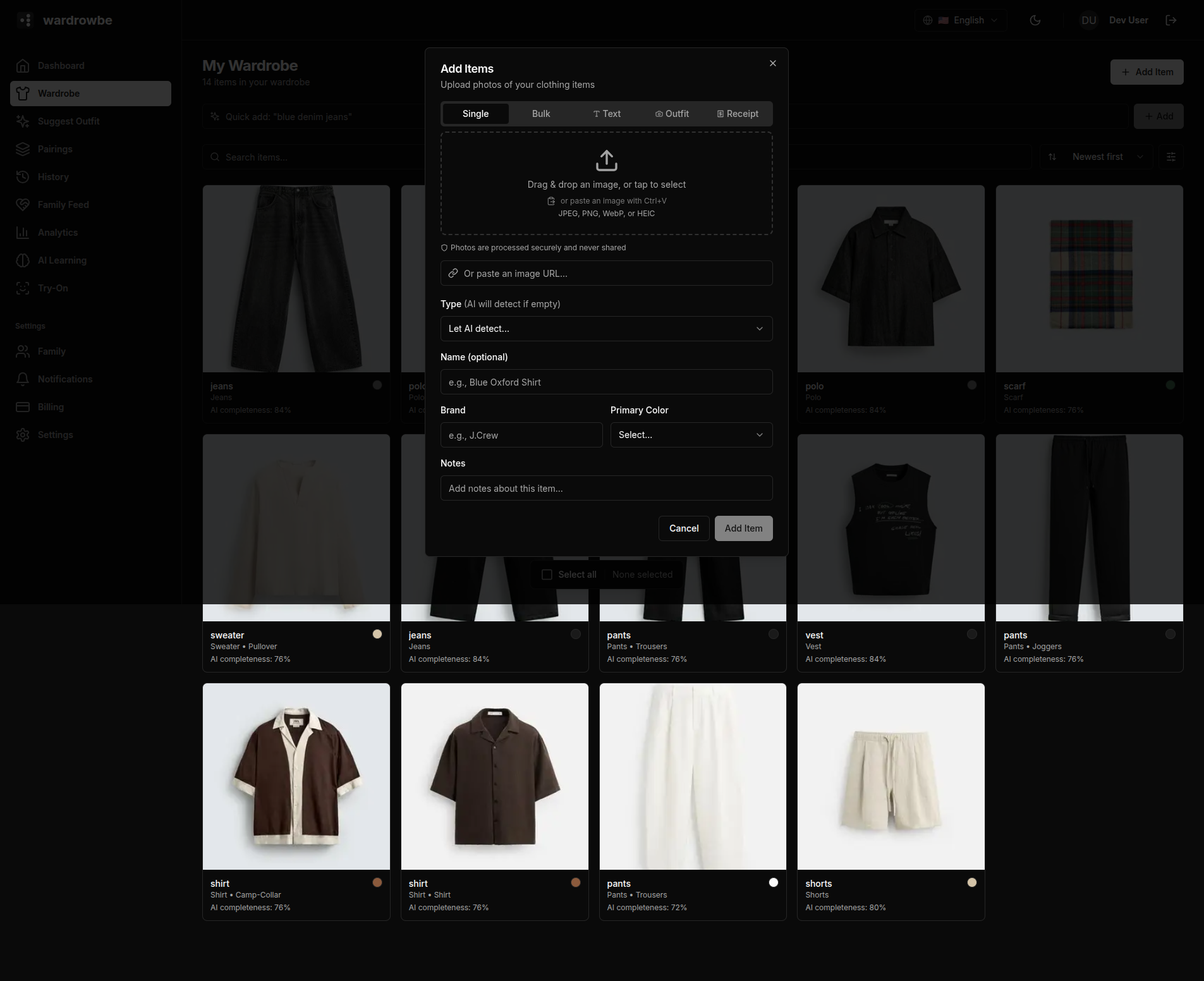
Opening the Dialog
Click “Add Item” from the wardrobe page or use the Quick Action on the dashboard. The dialog opens with three tabs: Single, Bulk, and Text.
Method 1: Photo Upload (Single Tab)
Drag and drop a photo onto the upload area, or click to open the file picker. Supported formats: JPG, PNG, WEBP. The recommended photo size is at least 500x500px.
Once a photo is selected, it shows a preview. Click “Add Item” to submit. The item enters a processing state immediately while the AI runs in the background.
Tips for better results:
- Photograph items flat on a surface or hung on a hanger.
- Use a plain background when possible (though background removal handles most cases).
- Avoid folded or wrinkled items: tags like color and style are more accurate when the item is unfolded.
- Good lighting matters more than camera quality.
Method 2: URL Import (Single Tab)
Paste a product URL from a retailer. The app fetches the product image and any available metadata. This works well for recently purchased items you want to catalog before wearing.
Not all retailer sites allow image fetching. If the import fails, fall back to downloading the image and uploading it directly.
Method 3: Text Description (Text Tab)
Type a plain-language description of the item: for example, “grey merino wool v-neck sweater” or “light wash straight-leg jeans.” The AI generates a full tag set from the description alone without needing a photo.
Text-added items won’t have a photo thumbnail. You can add a photo later from the item detail view.
Processing State
After submission, the item appears in the wardrobe grid with a “Processing” badge. This means the AI is running: analyzing the image, extracting tags, and removing the background. Processing typically completes within a few seconds. The badge disappears when done.
You don’t need to wait on the page. Processing continues in the background and the item updates when complete.
After Processing
Once processing is complete, click the item to view the generated tags. You can edit any tag if the AI got something wrong. See Item Details for more.
Mobile: Tap the ”+” button in the wardrobe tab. You can pick from your photo library, take a new photo with the camera, or use the text description input. The same AI pipeline runs after submission.