Notification Channels
Channels are the delivery endpoints for outfit notifications. You can configure multiple channels and use them independently or together.
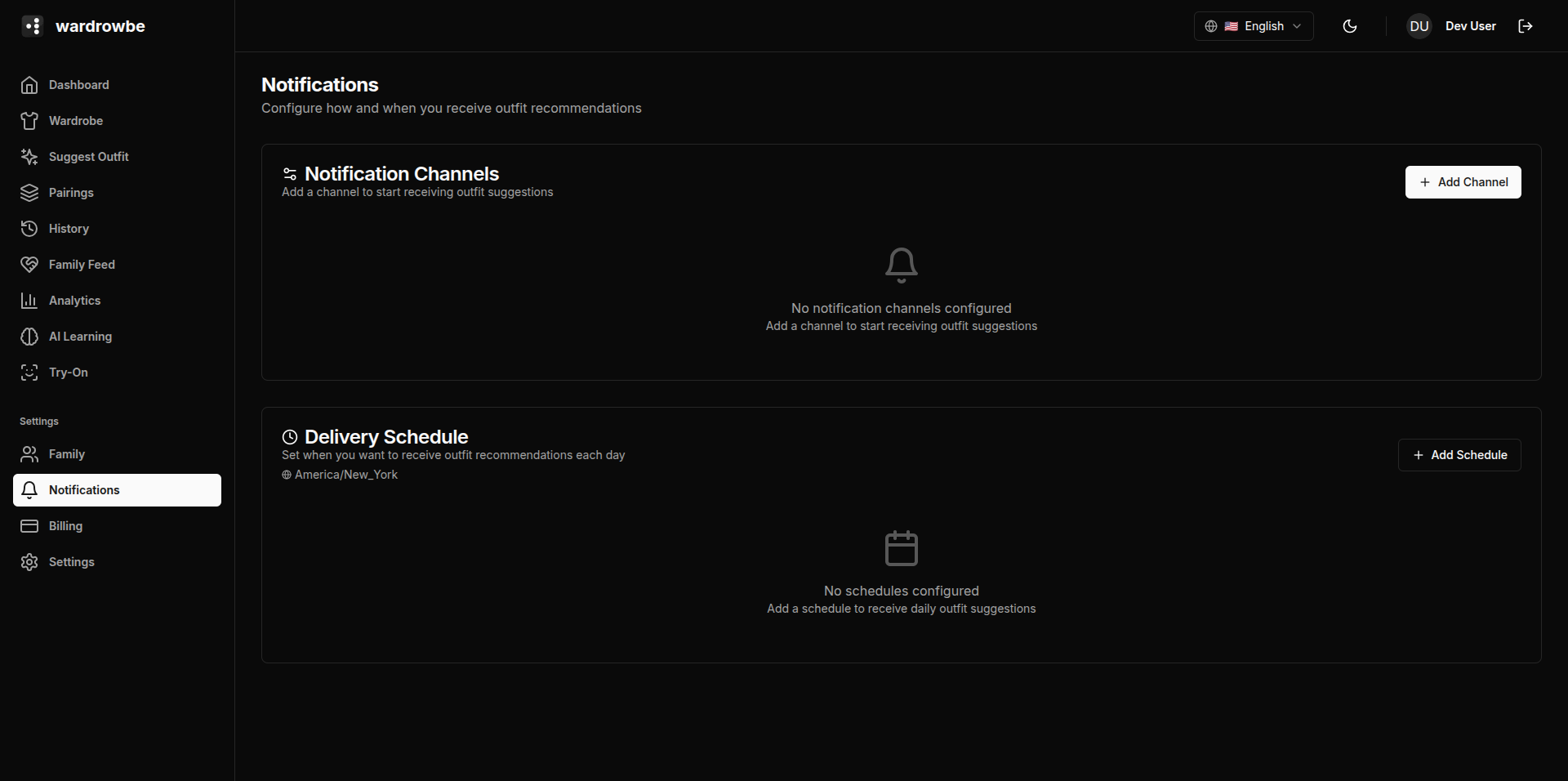
Available Channel Types
| Channel | Description |
|---|---|
| ntfy | Open-source push notifications via a self-hosted or public ntfy server |
| Direct email to any address | |
| Mattermost | Webhook-based notifications to a Mattermost channel |
| Mobile push | Automatic for the mobile app; no setup required |
Adding a Channel
Click “Add Channel” and select the channel type. Fill in the required fields:
ntfy:
- Server URL (e.g.,
https://ntfy.shor your self-hosted instance) - Topic (the ntfy topic to publish to)
- Access token (if your server requires authentication)
Email:
- Email address
Mattermost:
- Webhook URL (from Mattermost’s Incoming Webhooks integration)
Mobile push: Added automatically when you log in to the mobile app. No configuration needed.
Channel Cards
Each configured channel appears as a card showing:
- Channel type and icon.
- The endpoint (email address, ntfy topic, etc.).
- Active/inactive toggle.
- Test button.
- Delete button.
Toggling Channels
Click the toggle on a channel card to enable or disable it without deleting the configuration. Disabled channels don’t receive notifications but retain their settings.
Testing Channels
Click the test button on any channel card to send a test notification immediately. The test message confirms the channel is configured correctly and delivery is working. If the test fails, check your server URL, topic, or access token.
Deleting Channels
Click the delete button on a channel card to remove it. If any notification schedules are using that channel, those schedules will need to be updated or they’ll stop delivering.
Mobile: Push notifications on mobile are registered automatically when you install the app and grant notification permission. You can view the channel status in Settings > Notifications.