Style Insights
Style insights show what the system has learned from your feedback so far. This is where you can see how the AI’s understanding of your preferences is evolving over time.
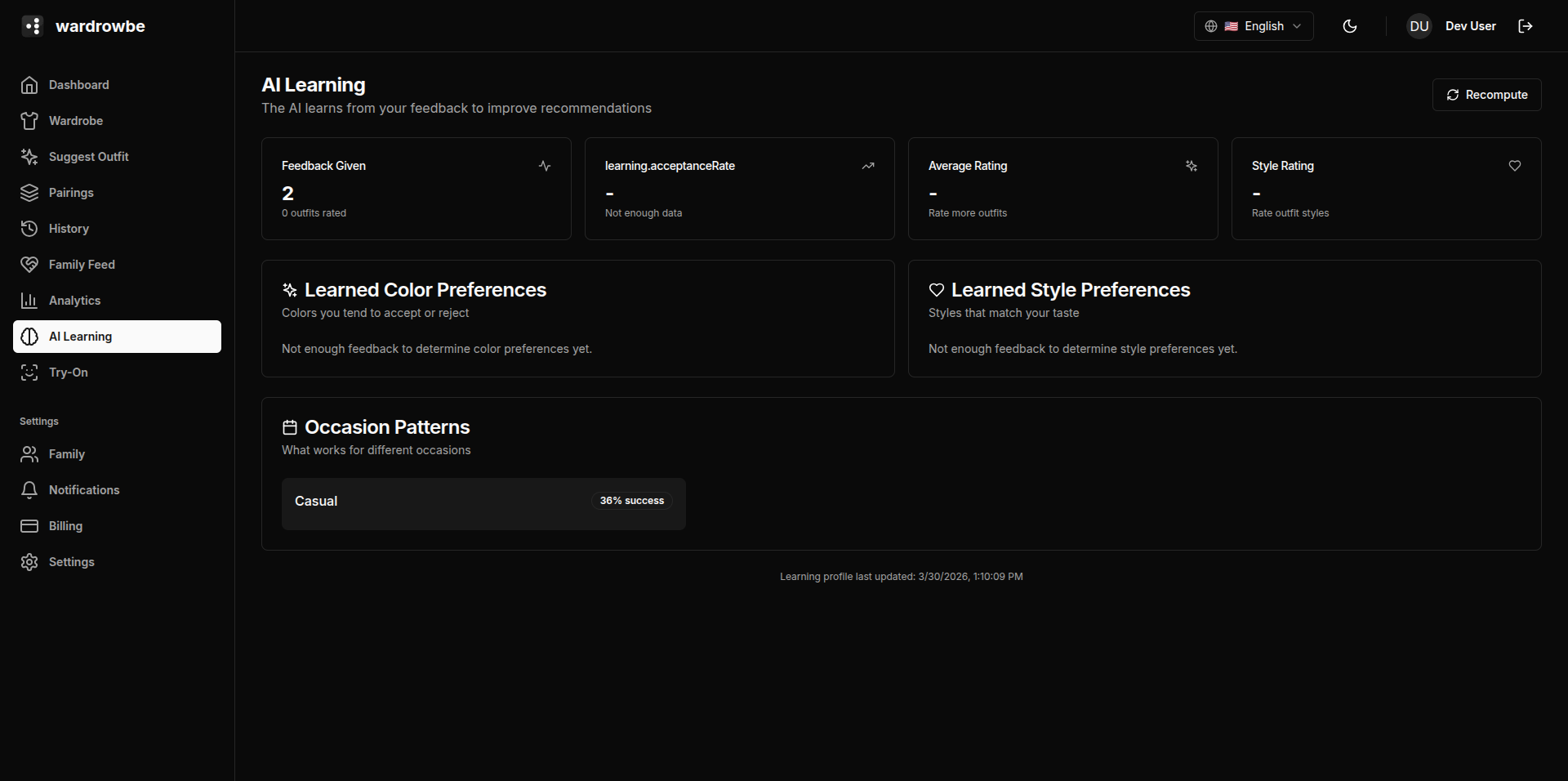
Stat Cards
Four cards at the top give a summary of your feedback data:
| Card | Description |
|---|---|
| Feedback count | Total number of feedback interactions (accepts, rejects, ratings, wore-instead) |
| Acceptance rate | Percentage of suggestions you’ve accepted |
| Average rating | Mean star rating across rated outfits |
| Style rating | A composite score reflecting how well current suggestions match your profile |
AI Insights Cards
Below the stats, the insights section shows AI-generated observations about your style patterns. Each insight card includes:
- Type icon: The category of insight (color preference, occasion pattern, layer preference, etc.).
- Confidence badge: How confident the system is in this observation. Low confidence means it’s based on limited data.
- Color-coded border: Visual indicator of sentiment. Green = positive (you like this), red = negative (you avoid this), blue = neutral pattern.
- Dismiss button: Remove insights that don’t feel accurate. Dismissed insights don’t affect how the model behaves; they’re just hidden from view.
Example insights:
- “You consistently prefer navy and grey combinations for office occasions.”
- “You tend to reject outfits with visible logos or branding.”
- “Layered looks with a jacket over a collared shirt appear in 70% of your accepted formal suggestions.”
Learned Color Preferences
A visual representation of which colors the system has learned you prefer. Shown as two grouped bars:
- Positive: Colors that appear frequently in accepted outfits and wore-instead selections.
- Negative: Colors that appear frequently in rejected outfits.
This is derived from actual behavior, not your manually set preferences. A color can appear in both bars if your behavior around it is inconsistent.
Learned Style Preferences
Similar to color preferences but for style signals: casual, formal, sporty, minimalist, bold. These reflect observed behavior rather than your slider settings.
If learned preferences diverge significantly from your set preferences, that’s useful information. Either your slider settings don’t reflect how you actually dress, or you’re in a transition period.
Regenerate Button
The “Regenerate Profile” button triggers a full recomputation of your learning profile from scratch using all available feedback data. Use this if you feel the current insights don’t reflect your preferences accurately, particularly after a large batch of new feedback.
Regeneration takes a few seconds.
Mobile: Style insights are accessible from Settings > Learning. The cards and charts are identical; they stack vertically on mobile screens.