Outfit History
The history page is a record of every outfit suggestion you’ve interacted with. It shows what was suggested, what you actually wore, and how you rated it.
Layout
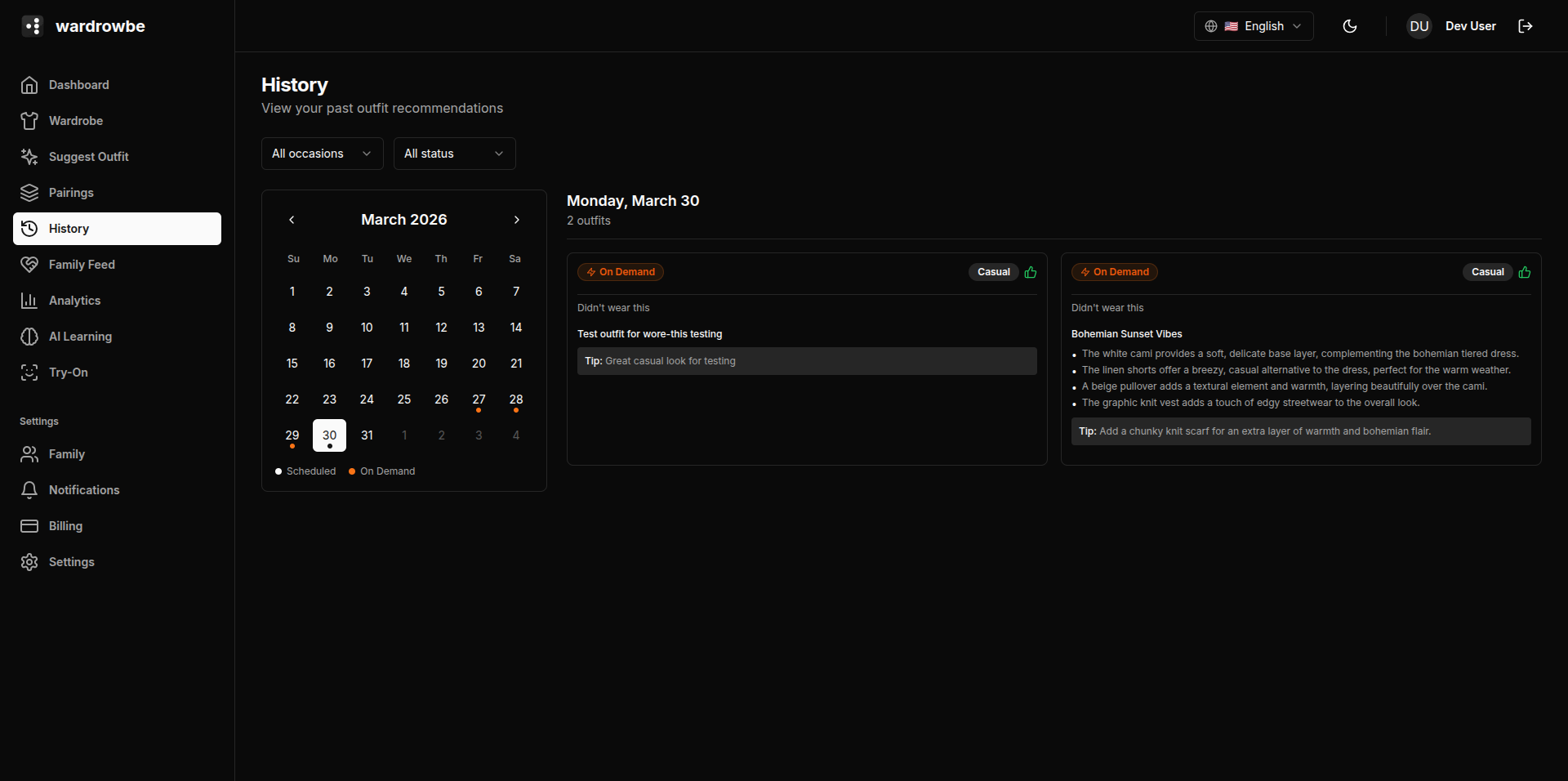
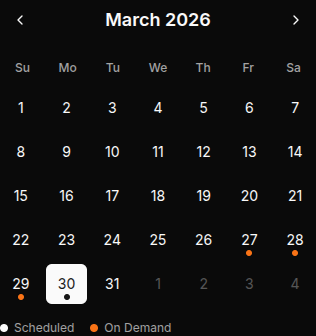
The history page has a two-panel layout:
- Left panel: A calendar view. Dates with outfit activity have a dot indicator. Navigate between months using the arrow buttons.
- Right panel: Outfit cards for the selected date or the full list.
Outfit Cards
Each outfit card shows:
- Occasion badge: The occasion the outfit was generated for (e.g., Casual, Office), color-coded matching the suggestion page.
- Status badge: Accepted, rejected, or wore-instead.
- Items: Thumbnails of the items in the outfit.
- Rating: Star rating if you provided one.
- Wore instead indicator: If you logged different items, a “Wore instead” badge appears with thumbnails of what you actually wore.
Filtering
Use the filter bar above the outfit list to narrow by:
- Occasion: Show only outfits for a specific occasion.
- Status: Show only accepted, rejected, or wore-instead outfits.
- Date range: Filter to a specific period.
Previewing an Outfit
Click any outfit card to expand it. The expanded view shows the full outfit items with their names, the AI’s original reasoning for the suggestion, and the feedback you provided.
Marking as Worn
If you accepted an outfit suggestion but forgot to confirm you wore it, you can mark it as worn from the history card. This logs a wear for each item in the outfit.
Feedback Button
Each outfit card has a feedback button. Click it to open the feedback dialog for that outfit. This lets you add or update a rating and wore-instead selection even days after the outfit was generated.
Mobile: The History tab in the mobile app shows the same information in a single-column list. The calendar is a horizontal date strip at the top. Tap a date to filter to that day.