Authentication
Wardrowbe supports multiple sign-in methods. You don’t need to create a separate account with a username and password.
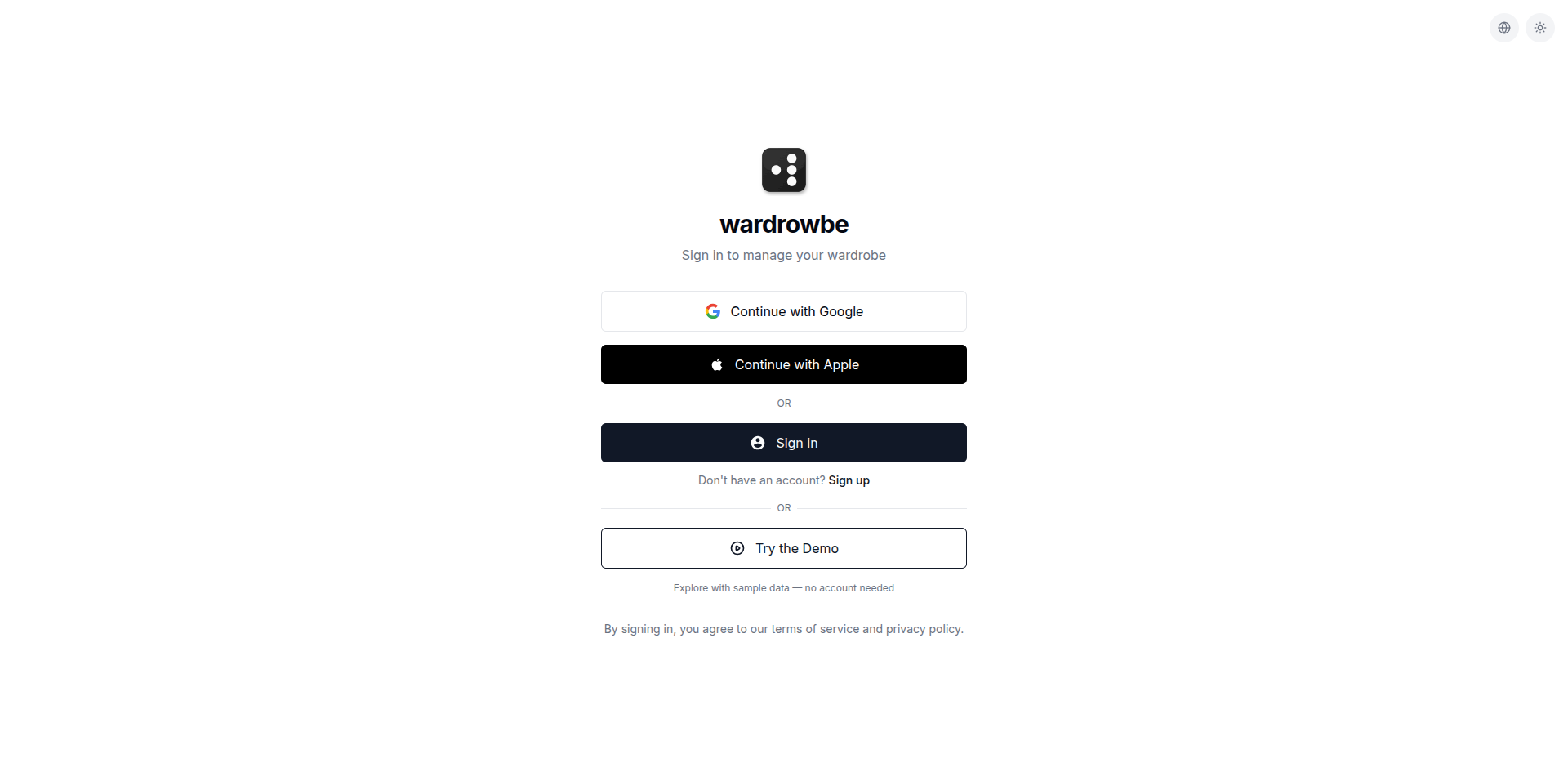
Sign-In Options
Click Continue with Google to sign in with your Google account. This uses Google’s OAuth flow. You’ll be redirected to Google’s login page, authorize Wardrowbe, and return signed in. Your name and email are pulled from your Google profile.
Apple
Click Continue with Apple to use Apple Sign-In. This works on web and iOS. Apple lets you hide your real email address behind a relay address if you prefer.
OIDC (OpenID Connect)
The Sign in button uses OpenID Connect, an open authentication standard. For the cloud version, this connects to Wardrowbe’s identity provider. Self-hosted users can configure any OIDC-compatible provider (Keycloak, Authentik, PocketID, Auth0, etc.) to use their own authentication.
Demo Mode
Click Try the Demo to explore Wardrowbe with sample data and no account required. Demo mode is read-only, so you can browse the full app but you won’t be able to add items or modify settings.
Mobile Authentication
The mobile app supports the same sign-in methods:
- Google Sign-In using the native Google SDK (not a web redirect)
- Apple Sign-In using the native Apple authentication dialog (iOS)
- OIDC using an in-app browser for the authorization flow
- Demo mode for exploring without an account
On mobile, your session token is stored securely using the device’s secure storage (Keychain on iOS, Keystore on Android). You stay signed in until you explicitly log out.
Security
- Wardrowbe never stores your password. Authentication is fully delegated to Google, Apple, or your OIDC provider.
- Session tokens are JWTs with expiration. They refresh automatically.
- All authentication traffic is encrypted over HTTPS.
Self-Hosted Authentication
If you’re running the self-hosted version, you configure your own OIDC provider in the environment settings. Any provider that supports OpenID Connect works: Keycloak, Authentik, PocketID, Authelia, Auth0, Okta, and others. See the self-hosted setup guide in the GitHub repository for configuration details.