Family Setup
A family group lets multiple users share outfit activity. Members can browse each other’s outfit suggestions and rate them. Wardrobes, preferences, and billing remain separate per account.
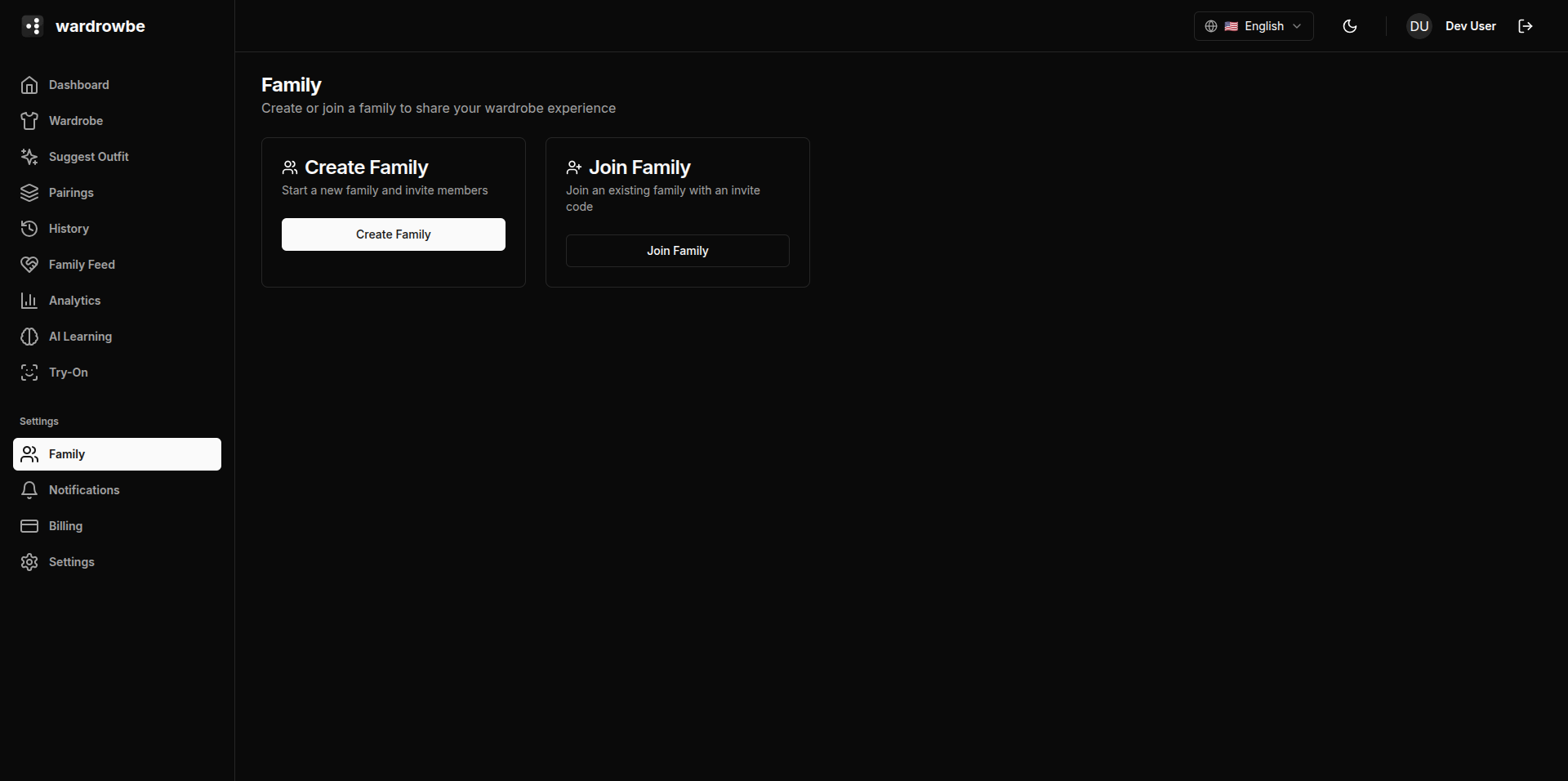
Creating a Family
Click “Create Family” and enter a name. The family is created immediately and you become the admin. A unique invite code is generated automatically.
Joining a Family
If someone else has created a family and shared their invite code with you, click “Join Family” and enter the code. You’ll be added as a member immediately.
You can only belong to one family at a time. Leaving a family removes you from it without deleting your account or wardrobe.
Inviting Members
As the family admin, you have two ways to invite people:
Invite code: Share the code shown on the family page. Anyone who enters this code joins your family. The code can be regenerated if you want to revoke access.
Email invite: Enter an email address and send an invitation. The person receives a link. If they don’t have an account yet, they’ll be prompted to create one first.
Managing Members
The family member list shows all current members with their role (Admin or Member) and when they joined.
Admin capabilities:
- Change the family name
- Remove members
- Regenerate the invite code
- Transfer admin role to another member
Member capabilities:
- View the family feed
- Rate other members’ outfits
- Leave the family
Removing Members
Only admins can remove members. Click the overflow menu on a member card and select “Remove.” Removed members retain their own account and wardrobe. They’re simply no longer in the family group.
Leaving a Family
Click “Leave Family” from the family settings. If you’re the only admin, you’ll need to either transfer the admin role to another member or disband the family first.
Mobile: Family is accessible from Settings > Family on mobile. Creating, joining, and managing members works the same as on web.