Dashboard
The dashboard is your daily home base. It surfaces the information you actually need: what the weather is doing, whether you have an outfit waiting, and how your wardrobe is performing over time.
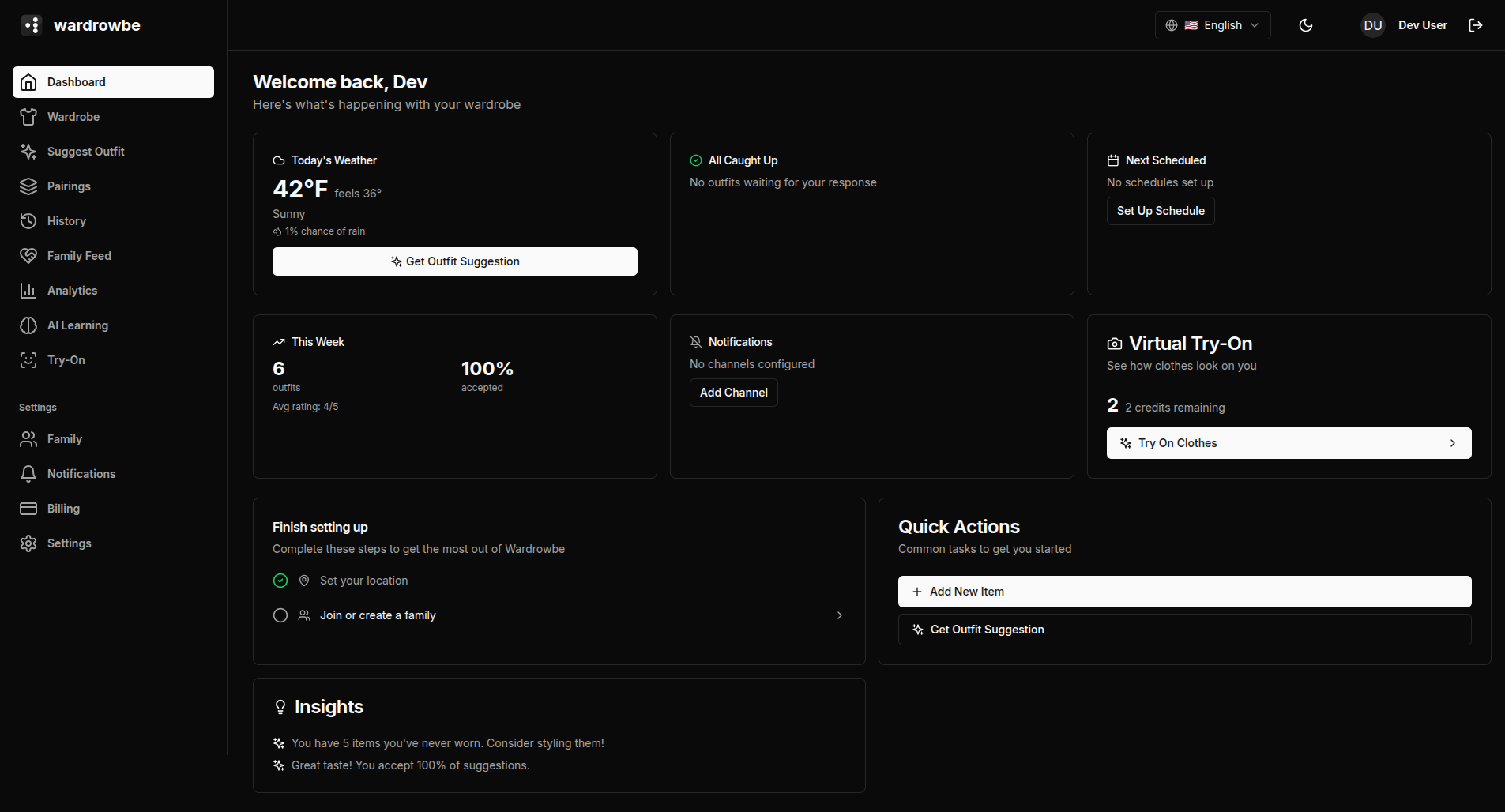
Weather Card
The weather card shows current conditions for your location: temperature (in your preferred unit), feels-like temperature, precipitation chance, wind speed, and a condition label. This card feeds directly into outfit suggestions. When the app generates an outfit, it uses this exact weather data.
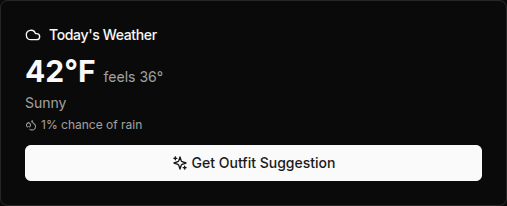
If your location hasn’t been set, the card will prompt you to add it in Settings.
Pending Outfit
If you have outfit suggestions generated but not yet acted on, the dashboard shows a pending outfit card. This is a direct link back into the suggestion flow so you can accept, try another, or reject without navigating to the Suggest page.
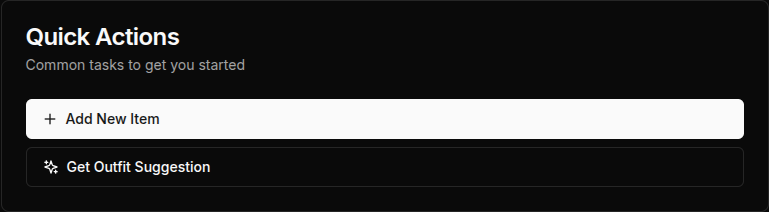
Quick Actions
The quick actions row gives you one-tap access to the most common tasks: generate a new outfit suggestion, add a wardrobe item, and view your outfit history.
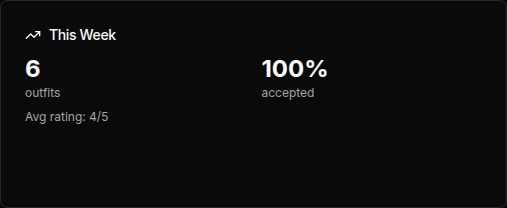
Weekly Summary
The weekly summary shows how many outfits you’ve accepted this week and how many items you’ve worn. It gives a quick read on whether you’ve been actively using your wardrobe.
Setup Checklist
For new accounts, the dashboard shows a setup checklist covering the key steps to get full value out of the app: set your location, add at least 5 items, configure your style preferences, and set up notifications. The checklist disappears once all steps are complete.
Insights Card
The insights card surfaces a recent finding from the Style Learning system. Examples: “You tend to prefer layered outfits on cold days” or “Navy blue appears in 8 of your last 10 accepted outfits.” These rotate as the system learns more.
Virtual Try-On Credits
If you’re on a plan that includes virtual try-on, the dashboard shows your current credit balance: monthly allowance used, remaining credits, and any bonus credits from purchased packs. Clicking this card takes you to the Credits page.
Notification Status
The notification status indicator shows whether you have any active notification schedules. If notifications are not configured, there’s a link to the Notifications setup page.
Mobile: The mobile home screen has the same structure. Tap the weather card to see the full forecast, or tap Quick Actions to add an item or request an outfit.