Introducing Outfit Studio — Build Outfits by Hand, Not Just by AI

For a long time Wardrowbe has been an AI-first app. You snap photos of your clothes, the AI tags them, and every morning it suggests what to wear. That flow is still the fastest way to get dressed, and it is not going anywhere.
But there is a whole class of outfits AI doesn't produce on its own. The exact combination you came up with in the mirror last Tuesday. The wedding-guest look you want to lock in before the date. The monday-morning thing you throw on every week that the AI keeps forgetting about. For those, I wanted a real editor. Not a form. Not a three-field dialog. An actual canvas where you build an outfit the way you actually think about it.
So I built Outfit Studio. It is live across web and the iPhone app as of today, and there is a matching Android build rolling out to the alpha track this week.
One Tab for Everything Outfit-Related
The first thing you will notice is that the bottom nav on mobile got shorter, and the sidebar on web got cleaner. Suggest, History, and the old per-item pairings views have all been folded into a single Outfits tab.
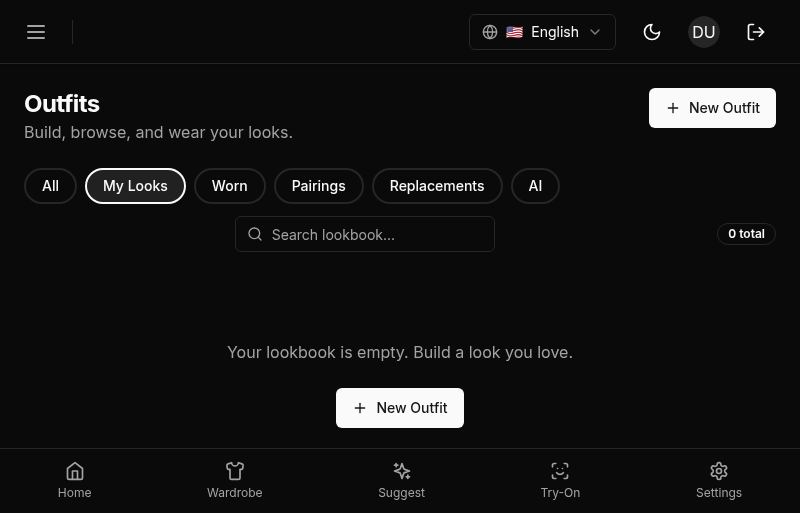
Inside the tab you get four filter chips: All, Suggested, My Looks, and Calendar. All shows everything mixed together. Suggested is just the AI-generated ones. My Looks is the outfits you built yourself in Studio. Calendar flips the whole page into a month grid of what you actually wore.
The active chip lives in the URL, so /outfits?view=calendar goes straight to calendar mode. Deep links work. Refresh keeps you where you were. The old /history and /pairings URLs still resolve, they just redirect into the right view of the new tab. If you linked to those pages from somewhere, nothing breaks.
This reorganization was overdue. Outfits are one concept. Having three different tabs for "outfits the app suggested," "outfits I wore," and "items that go together" was a product-shaped mess pretending to be navigation.
The Canvas
Build new opens an empty canvas.
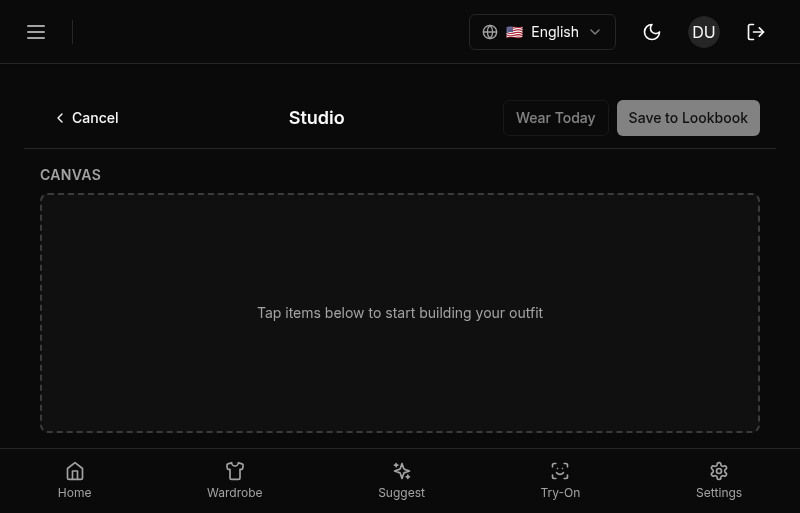
The canvas is split into canonical role slots: top, bottom, outerwear, shoes, accessory. These are fixed. You cannot drag them around, and that is on purpose. Every outfit in Wardrowbe has the same shape so that suggestions, saved looks, lineage references, and the learning engine all see the same structure. I tried letting slots be free-form early on and it was a disaster. Two weeks later your outfits were a grab bag of mystery items and nothing rendered the same way twice.
Click any empty slot to open the item picker. Picker is scoped to your active wardrobe, which means archived items and anything flagged as needs-wash is excluded. Search hits item name, subtype, tags, and color all at once, so navy, wool, and summer all work as search queries. Filters for type, occasion, and formality sit above the results.
Click, pick, drop, done. The slot fills, the picker closes.
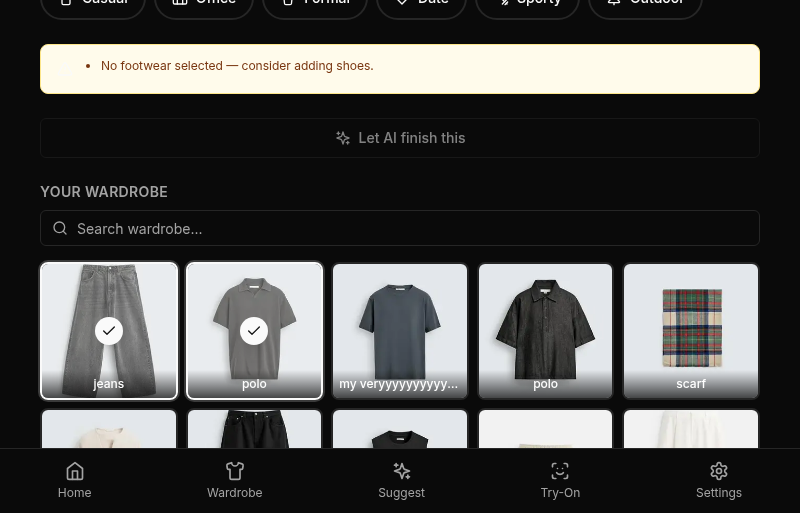
Before you can save you need three things: a name, at least one item, and an occasion. The save button stays disabled until all three are filled. I made those required visibly, not silently, because the number one complaint in the early beta was "I clicked save and nothing happened." Nothing was happening because the form was incomplete, but nothing was telling the user that. So now every required field has a marker. Simple fix, should have been there from day one honestly.
AI Assist as a Seed, Not a Commitment
A totally empty canvas is intimidating if you have 120 items in your wardrobe. So Studio has an AI Assist button that pre-populates the canvas with a complete outfit, generated the same way the daily suggestion is: weather, occasion, style preferences, and your learned patterns all feed in.
The key word is seed. Assist gives you a starting point, not a final answer. You can swap items, remove anything you don't like, or keep only the one piece you wanted and have Assist fill the rest around it. I use it mostly as an anchor flow: drop a specific jacket into outerwear, hit Assist, get the rest of the outfit built around that jacket. The result is almost always wearable even if I end up swapping a piece or two.
What Assist does not do: it does not overwrite slots you have already filled, it does not recommend items outside your wardrobe, and it does not save anything automatically. The canvas stays a draft until you hit save yourself.
Edit, Clone, and the Worn-Immutable Rule
Every outfit you save in Studio is editable later. Open the detail page, click Edit, and Studio loads with the current state pre-filled.
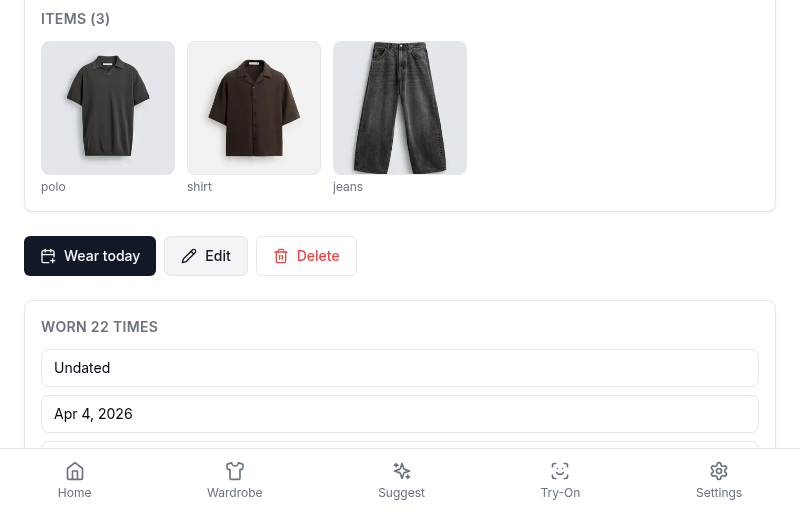
This is the part where I had to make a call that some people might disagree with: once you mark an outfit as worn, you cannot edit it. The Edit button goes away. If you hit Edit through a stale link or while someone on another device marked it worn in parallel, Studio catches the conflict and gives you two options: clone the outfit and edit the clone, or go back.
The reason is integrity. A worn outfit is a record of what you put on your body that day. If you could edit the items afterward, the wear history would drift away from reality, and the learning engine would lose the signal. A shirt you wore last Tuesday needs to stay a shirt you wore last Tuesday, even if you rename the outfit or tweak it later.
Clone-and-edit covers the real use case anyway. If I wore the outfit but want a variant for next time, cloning it gives me a new outfit to modify freely, with the original wear record intact. Both outfits live in My Looks. The clone has a lineage link back to the source so I can always see where it came from.
Lineage is tracked two ways. If you cloned an outfit, the new one has a cloned_from link. If you used Wore Instead on a suggestion, the new outfit has a replaces link pointing at the suggestion it swapped. Both are rendered on the outfit detail page as a small lineage card. Not cluttered, just present when there is a relationship worth showing.
Wore Instead, Through Studio
Wore Instead used to be a multi-select picker. Reject a suggestion, pick some items from a popup, done. That was fine for "I swapped the trousers for jeans," but it was a terrible fit for what people actually do, which is wear a completely different outfit and want to remember it.
The new wore-instead runs through Studio. When you pick "I wore something else" on a suggestion, Studio opens seeded with the suggestion's items as a starting point, and with the replaces link to the original set automatically. You modify the canvas to match what you actually wore, then save. The result is a real outfit in your lookbook with a full set of items, an occasion, a name, and a link back to the suggestion it replaced.
This matters for two reasons. One, your wore-instead outfits are now reusable. If you wore the same thing three Tuesdays in a row as a swap for the suggestion, you have three records of a real outfit you can just pick directly next time. Two, the learning engine gets a much richer signal. Rejecting a suggestion is weak data. Wearing a specific named replacement is strong data. The engine splits those into separate signals and weights them accordingly, so wore-instead wears move the needle on future suggestions more than a plain reject ever could.
Read about how the learning engine turns wear data into better suggestions for the full mechanics.
Search That Actually Searches
Studio would have been useless if the picker was slow or if finding the right item took six clicks. So item search in the picker now hits four fields in parallel: name, subtype, tags, and color. There is a Postgres trigram GIN index on all four on the backend, which means typing a partial word like "blaz" returns results instantly even with hundreds of items.
This also spilled over into the main wardrobe grid. The search bar on the Wardrobe tab uses the same expanded search now. If you have been frustrated that searching for "summer" on your wardrobe page returned nothing because "summer" was a tag and not a name, that is fixed. It works everywhere.
While I was in there I also made the Load More button on the wardrobe grid visible. It used to be a subtle "scroll down and it'll auto-load" pattern, which is fine until you have 200 items and the auto-load skips ahead and loses your scroll position. Explicit button, no surprises.
Unified Outfits on Mobile
Everything above lands on mobile the same day. The iPhone app and the Android alpha both get the new Outfits tab, the Studio canvas, AI Assist, edit mode, worn-immutable recovery, and the wore-instead flow. The mobile canvas stacks role slots vertically for touch, the picker is a full-screen sheet with search at the top, and save works identically.
A few mobile-specific polish bits came with this release:
- The segmented control for the filter chips is now pixel-correct and handles the single-option case without crashing (embarrassing bug I fixed on the last day).
- The outfit detail screen got a premium redesign with bigger hero imagery, clearer action buttons, and inline lineage.
- First-launch notice explains the new Outfits tab to anyone who used the old separate Suggest and History tabs, so nobody wakes up wondering where their screens went.
- Required field markers in the Studio form match the web version so the disabled Save state is never mysterious.
If you are on TestFlight or the Play Store alpha, you will see the update today. If you are on the current App Store build, this is part of the next release, which is in submit.
For Self-Hosted Users
The self-hosted version will get Outfit Studio in the next sync. All of the work is behind a studio_disabled backend kill switch by default off, so when the feature lands in the open-source repo you get the same canvas, the same AI Assist, the same edit flow. The canvas seed uses whatever AI model you have configured for suggestions, which means it works the same on Ollama or any OpenAI-compatible endpoint. No cloud dependency for the editor itself.
If you are currently self-hosted and waiting for the sync, the next OSS release will include everything in this post.
Why This Took a Real Editor
I could have shipped a much smaller thing. A dialog with five dropdowns, one per slot, and a save button. That would have been a week of work and it would have been close to useless for the actual use cases. People do not build outfits by filling out forms. They build outfits visually, by swapping, by trying things, by saying "actually no, the other shoes."
Studio is a canvas because the work of building an outfit is a canvas problem. It is a picker with real search because finding the right piece in a wardrobe of 200 items is a search problem. It has edit mode with a worn-immutable rule because history integrity is a real constraint. It has lineage because outfits are not isolated; they come from somewhere. It runs on the same learning pipeline as suggestions because a hand-built outfit is still a signal about your taste, and ignoring it would be dumb.
None of this was easy. The backend got a new service layer, two Alembic migrations, a new ItemPairScore.wear_bonus column, parametrized security tests, and a kill switch. The frontend got shared components for occasion chips, item pickers, lineage cards, a clone-to-lookbook dialog, and the Studio canvas itself. The mobile app got 30 commits worth of ports, plus a segmented control and a picker overhaul. 11,000 lines added, 2,000 removed, 102 files touched. For a feature that most users will use as "the button I click when I want to save an outfit." That is how it should feel.
Getting Started With Studio
If you are already a Wardrowbe user, there is nothing to do. Open the app, you will see the unified Outfits tab and a Build new button. Click it and start.
If you are new, snap your clothes first. AI will tag them, your wardrobe will fill up, and then Studio will have something to work with. Outfit Studio is pointless on an empty closet.
For the full flow, accept a suggestion or two first to get a feel for how Wardrowbe thinks, then try building one yourself in Studio. The difference between the two flows will make sense immediately once you have done both.
What Is Next
A few things are already queued for the next Studio update: drag-to-reorder within a slot for items that can be worn in layers, a duplicate action from the detail page for quickly creating a variant, and richer notes per outfit so you can remember why you loved it. None of these are shipped yet. Studio as it is now is the base.
Try it at app.wardrowbe.com on web, on the iPhone app, or grab it from GitHub for self-hosted.
See all features, check how it works, or browse the rest of the blog for more on how Wardrowbe thinks about wardrobes.
Ready to get dressed in 60 seconds?
Start your 7-day free trial. No credit card required.